Introduction
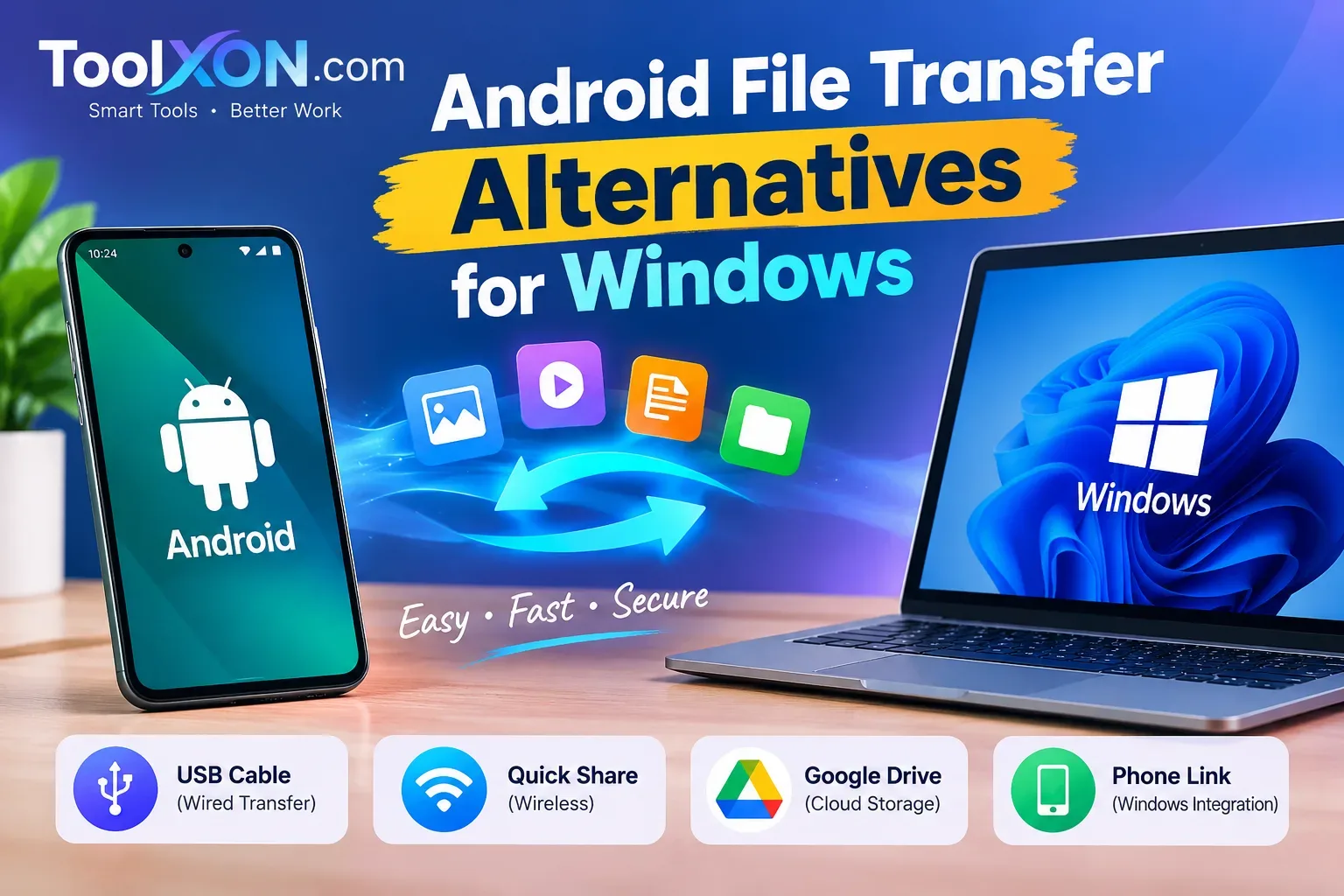
Android File Transfer Alternatives for Windows can make moving photos, videos, documents, and other files between your phone and computer much easier. Whether you're backing up important pictures, transferring large videos, or sharing documents for work, choosing the right method can save time and frustration.
Fortunately, you don't always need complicated software. Windows offers built-in file transfer options, while wireless tools can help you move files without connecting a USB cable. However, the best choice depends on your internet connection, file size, privacy needs, and whether you prefer a wired or wireless connection.
In this guide, you'll discover practical Android-to-PC file transfer methods, including USB, Quick Share, and cloud storage, so you can choose the option that works best for you.
Table of Contents
- Best Android File Transfer Alternatives
- How to Transfer Files Using USB
- Wireless File Transfer Options
- Frequently Asked Questions
Best Android File Transfer Alternatives for Windows
| Method | Best For |
|---|---|
| USB cable | Large files and offline transfers |
| Quick Share | Wireless sharing with compatible Windows PCs |
| Google Drive | Online backups and document sharing |
| Phone Link | Accessing supported phone content from Windows |
How to Transfer Files from Android to Windows Using USB
Follow these simple steps:
- Connect your Android phone to your PC using a USB cable.
- Unlock your phone and tap the USB notification.
- Select File Transfer or Transferring files.
- Open File Explorer on Windows.
- Select your phone and copy files to your computer.
If the phone doesn't appear, try another USB cable or USB port.
Wireless Android File Transfer Alternatives
Quick Share is useful for sending files wirelessly between compatible Android devices and Windows computers. Install the Windows application if needed, enable the required wireless connections, and follow the on-screen pairing instructions.
Alternatively, upload files to Google Drive and download them on your PC. This method works well when you need access to files across multiple devices, although internet access and sufficient cloud storage are required.
Frequently Asked Questions
What is the easiest way to transfer Android files to Windows?
A USB cable is usually the simplest option for transferring large files without internet access.
Can I transfer files wirelessly from Android to PC?
Yes. Quick Share and cloud storage services provide convenient wireless transfer options.
Why is my Android phone not showing on my PC?
Check that your phone is unlocked, select File Transfer mode, and try a different USB cable or port.
Final Thoughts
The best Android file transfer alternative depends on your needs. Use USB for large offline transfers, Quick Share for convenient wireless sharing, or Google Drive for online access. Each option offers a practical way to move files between Android and Windows.