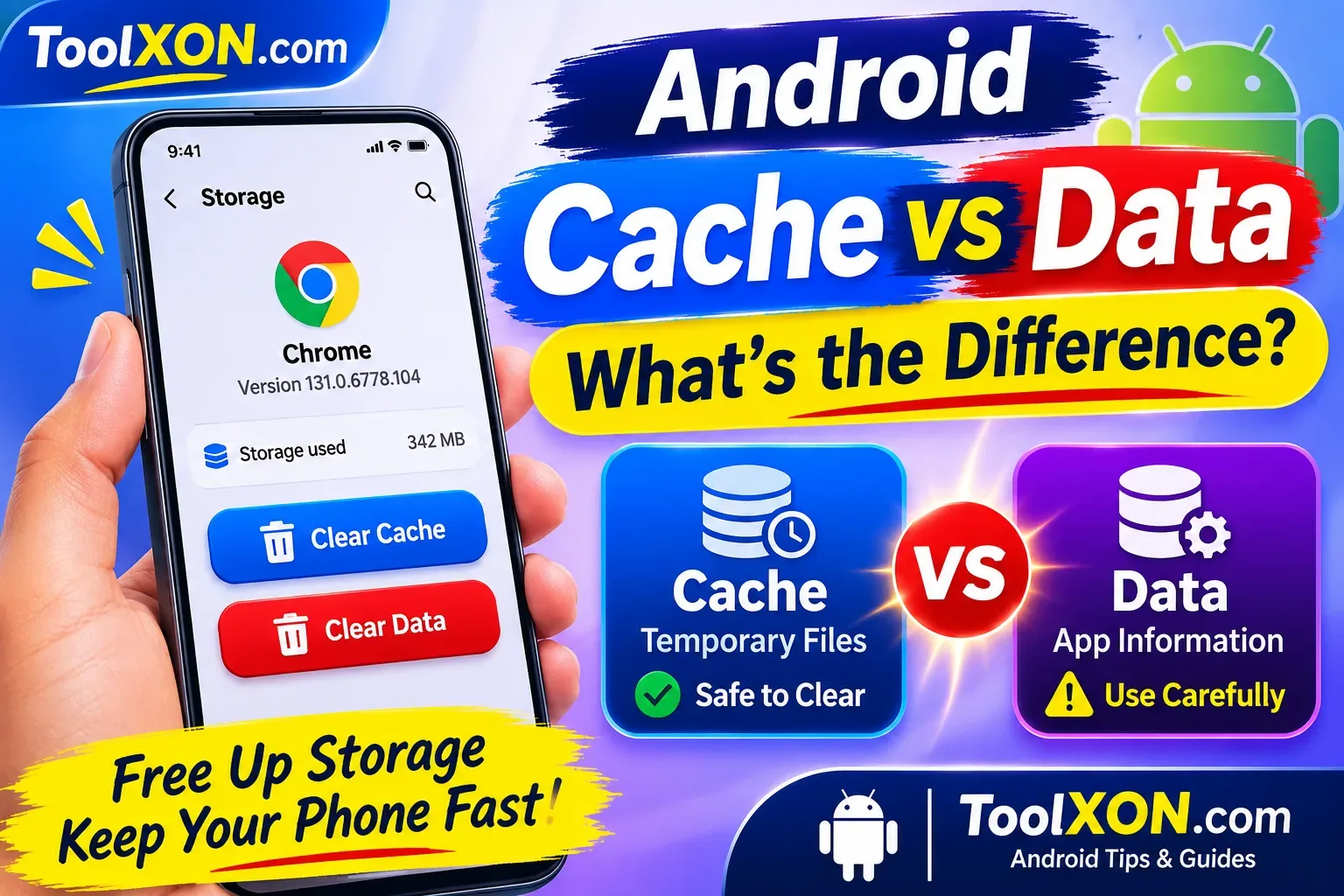
Android Cache vs Data: What's the Difference?
Confused about Clear Cache and Clear Data? Understand what each option does before deleting anything from your Android phone.
Android Cache vs Data is something worth understanding before trying to fix a slow app or free up storage space. When you open an app's storage settings, Android usually shows two separate options: Clear Cache and Clear Data. Although they may look similar, they do very different jobs. Cache contains temporary files that help apps load faster, while app data stores important information such as settings, accounts, downloads and saved preferences. Clearing the wrong option could mean having to sign in again or setting up an app from scratch. Fortunately, clearing cache is generally much safer. In this guide, you'll learn what both options mean, when to use them and how to manage Android app storage without accidentally losing important information.
Table of Contents
1. What Is Android Cache?
Cache is temporary storage used by apps to load content more quickly. For example, social media apps may cache images, websites and other frequently accessed content. These files can usually be downloaded or created again when needed.
Clearing cache can help when an app behaves strangely or uses too much temporary storage. However, it does not guarantee a performance improvement every time.
2. What Is App Data on Android?
App data includes information an application needs to remember your preferences and settings. Depending on the app, it may include login sessions, downloaded files, saved progress and other personal configurations.
When you choose Clear Data or Clear Storage, the app is generally reset to its initial state. Some locally stored information may be permanently deleted, so check whether important content is backed up first.
3. Android Cache vs Data: Key Differences
| Feature | Cache | App Data |
|---|---|---|
| Purpose | Temporary files | App information |
| Storage | Usually temporary | Settings and saved content |
| Clearing effect | Removes cached files | Resets the app |
| Login status | Usually unchanged | May be removed |
| Recommended use | Routine troubleshooting | When a full reset is needed |
4. How to Clear Cache on Android
Follow these simple steps to remove an app's temporary files:
- Open your phone's Settings.
- Go to Apps or App Management.
- Select the app you want to clean.
- Open Storage or Storage Usage.
- Tap Clear Cache.
Menu names may differ depending on your Android version and phone brand. Avoid tapping Clear Data unless you want to reset the application.
5. When Should You Clear App Data?
Clearing app data can be useful when an application repeatedly crashes, refuses to open or has corrupted settings. However, first check whether your account information and important files are backed up.
If your main goal is to improve your phone's performance, you can also try these guides:
6. Frequently Asked Questions
Does clearing cache delete personal data?
No. Clearing an app's cache normally removes temporary files, not your saved account information or personal settings.
Does clearing app data delete everything?
It resets the app's locally stored information. Depending on the app, you may lose downloaded files, settings or saved progress that has not been backed up.
Is it safe to clear cache on Android?
Generally, yes. Apps can recreate most cached files when needed, although the first load afterward may take a little longer.
Should I clear cache or data to fix an app?
Start with Clear Cache. If the problem continues, consider clearing app data after checking your backups and login details.
Final Thoughts
Understanding the difference between Android cache and app data can help you manage storage more confidently. Cache is temporary and generally safe to remove, while app data may contain information you want to keep. Therefore, start with clearing cache and use Clear Data only when a complete app reset is necessary.
Choose the right option, protect your important files and keep your Android phone running smoothly.